You buy the router. You plug it in. You wait for the blinking light to settle. And then you stare at a plastic box with four yellow ports, wondering which cable goes where and whether you just voided the warranty by guessing.
I've set up home networks in a cramped Paris apartment where the walls were thick enough to block a radio signal, and in a house where the previous owner had run Ethernet through the walls in what I can only describe as a personal vendetta against logic. Setting up a home network for beginners isn't hard. It's just badly explained most of the time.
So let me explain it properly.
Key Takeaways
- A basic home network needs three things: an internet connection, a router (or modem-router combo), and at least one device to connect.
- Budget roughly $80–$250 for a decent router; you can spend less, but you'll feel it.
- Ethernet cables have real distance limits — the 5-4-3 rule is old, but the 100-meter ceiling still matters.
- Placement of your router affects WiFi more than the router's price tag.
- You can run your own WiFi without a traditional provider, but you still need an internet source.
- Windows 10 and 11 both handle network setup through the same basic settings panel.
What you actually need to set up a home network
Most guides bury this under jargon. Here's the honest version.
An internet connection is the first piece. Without it, you have a local network — useful for file sharing between two computers, useless for Netflix. Your provider delivers that connection through a cable, a fiber line, or a phone line.
Second, you need a router. This is the traffic cop. It takes one internet connection and splits it across every device in your home. Many providers now give you a combined modem-router, which is why some people never buy a separate router at all. I did this for two years and regretted it — the ISP-supplied box had a range of about six meters and dropped signal the moment I walked into the kitchen. Replacing it with a $120 router fixed everything.
Third, you need devices. A laptop. A phone. A smart TV. A printer that refuses to cooperate until you reboot it twice.
What three items are needed to install a home WiFi network?
Strictly speaking: a modem or gateway that receives the internet signal, a router that distributes it wirelessly, and the client devices you connect. If your provider gave you a combo unit, the first two are the same box. That's the whole list. Everything else — extenders, switches, mesh nodes — is an upgrade, not a requirement.
Can I have my own WiFi without a provider?
You can have a WiFi network without a provider. You cannot have internet access without one, unless you're using a mobile hotspot or satellite service like Starlink. Your router will happily broadcast a network and let devices talk to each other — file sharing, local printing, media streaming from a hard drive — with zero connection to the outside world. But the moment you want to check email, something has to supply that link. That's the provider's job.
Router placement matters more than you think
Here's the thing nobody tells you: a $300 router in a bad spot performs worse than a $90 router in a good one.
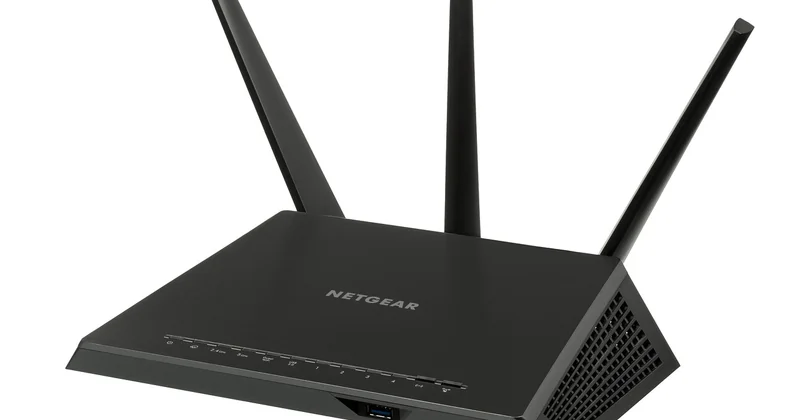
WiFi signals hate concrete, metal, water, and microwaves. In my apartment, I had the router behind the TV, tucked into a wooden cabinet. Signal in the bedroom: one bar. I moved it to a shelf in the hallway, out in the open, about 1.5 meters off the floor. Same router, same apartment. Three bars in the bedroom. Zero euros spent.
Put it central. Put it high. Don't hide it because it's ugly.
What is the 5 4 3 rule of Ethernet?
The 5-4-3 rule is a legacy guideline from the era of shared Ethernet networks. It states that between any two nodes on a network, you can have a maximum of five cable segments connected by four repeaters, and only three of those five segments can have devices attached. In practice, on a modern switched home network, this rule is irrelevant — switches replaced repeaters decades ago and don't count toward the limit. What still matters is the physical limit: 100 meters per Ethernet cable run before signal degrades. For home use, you'll never get close.
The actual setup process, step by step
Unbox the router. Connect the internet cable from your wall or modem into the router's WAN port — it's usually a different color from the others. Plug in the power. Wait two minutes.
Then connect a device. You can use WiFi (the default network name and password are printed on a sticker on the router) or a wired connection into any LAN port. I always start wired for the first setup — it's faster and you can't lose connection mid-configuration.
Open a browser and go to the router's admin address. It's typically printed on that same sticker, something like 192.168.1.1. Log in with the default credentials, then change the admin password immediately. I once skipped this step on a test router and found it indexed in a scan three days later. Nothing happened, but it could have.
From there, set your network name (SSID), set a strong WiFi password, and choose your security protocol. WPA3 if your router supports it, WPA2 otherwise. Never leave it open.
Setting up a home network on Windows 10 and 11
Once your router is broadcasting, Windows handles the rest. Go to Settings → Network & Internet → WiFi, select your network, enter the password. On Windows 11 the panel looks different but the steps are identical. For file sharing between computers, you'll need to set your network profile to Private rather than Public, then enable network discovery and file sharing in the advanced sharing settings. Set the same workgroup name on every machine, and the computers will see each other.
How much does it cost to set up a home network?
Let's talk money, because the ranges online are either vague or wildly inflated.
| Item | Budget option | Mid-range | What you get |
|---|---|---|---|
| Router | $40–$70 | $100–$200 | Better range, more simultaneous devices, WiFi 6/7 |
| Ethernet cables | $10 (2-pack) | $25 (5-pack, Cat 6) | Reliable wired connections |
| Modem (if not provided) | $50 | $120 | Required for cable/fiber connections |
| Mesh system (optional) | — | $150–$400 | Covers large homes without dead zones |
My first setup cost me nothing extra: the provider's box was free, and I used the cable that came in the box. When I outgrew it, I spent about $130 on a router and $18 on a five-pack of Cat 6 cables. That was it. If you're wiring a whole house with multiple access points, you're looking at $400 or more, but for a normal apartment or small house, under $150 total is realistic.
Common mistakes to avoid
I've made most of these. Learn from my wasted afternoons.
- Leaving the default admin password on the router. This is the single most common security hole in home networks.
- Buying an expensive router and putting it in a closet. Placement beats specs.
- Using the ISP's default network name — it broadcasts which router model you have, which tells attackers which known vulnerabilities to try.
- Forgetting that every device on WiFi competes for bandwidth. Fifteen smart plugs, four phones, and a 4K stream will choke a cheap router.
- Not labeling cables. Future you will thank present you.
None of this requires a technician. If you can follow a recipe, you can set up a home network. The blinking lights will make sense within an hour. And the first time you stream something in the bedroom without a single stutter, you'll wonder why you put it off for so long.
One last thing: the router you buy in 2026 will likely last you five or six years. The cables will last longer. Spend ten extra minutes on placement now, and you won't think about it again until the next standard comes along.